

Apple Pay is an easy, secure, and private way to pay. Now available on your Apple devices.


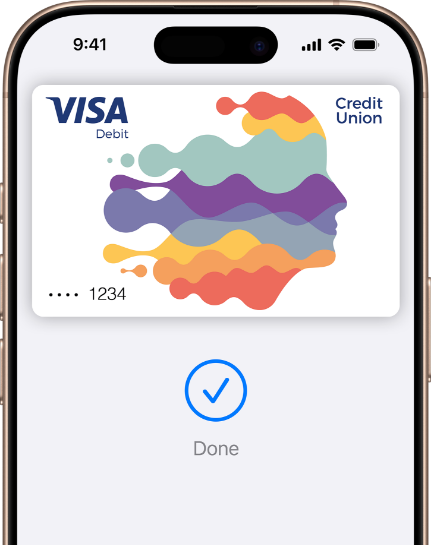
Easy, Fast Transactions.
With Apple Pay, you can pay quickly and easily with your Credit Union Debit Card right from your iPhone or Apple Watch.
Extra security. Built right in.
Apple Pay uses the security features built into your Apple device, including Face ID and Touch ID - which are designed so only you can authorise payments.
Shopping online just got easier.
With Apple Pay, information like your name and address automatically populate at checkout. Now paying is faster than ever.
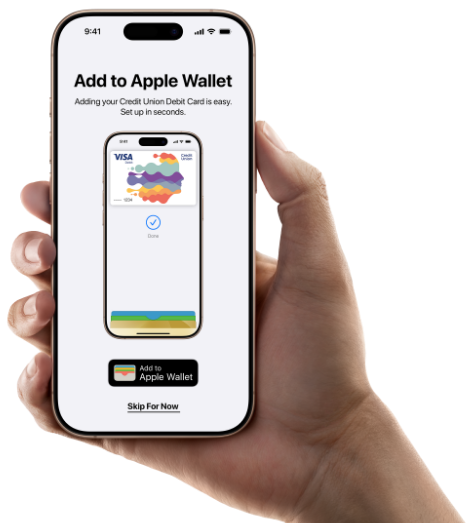
Adding your Credit Union Debit Card is easy
- Click the ‘Add to Apple Wallet’ button
- Follow the steps in your Apple Wallet
Reading this on an eligible Apple device? Set up a card now.

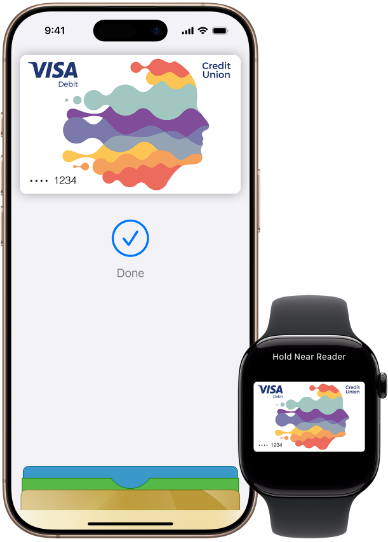
Pay with just a tap
Go ahead, leave your wallet at home. With Apple Pay, you can pay with your Credit Union Debit Card right from your iPhone or Apple Watch.
Use it where you already shop
To pay with Apple Pay online, in-app, or in-store, just look foror thesymbol.
Apple Pay – All you need to know
Apple Pay is a secure and easy-to-use mobile payment service that can be used to pay in stores wherever Contactless payments are accepted; just look for the Contactless or Apple Pay symbol.
It enables the use of eligible cards through compatible Apple devices by leveraging existing Near Field Communication (NFC) technology to make mobile payments.
You can also use it to make in-app and E-commerce purchases wherever the Apple Pay logo is displayed.


Mobile data or Wi-Fi connection is not required for making transactions using Apple Pay. You will need a mobile data or Wi-Fi to set up a card on the Wallet and to receive transaction notifications.
As a security measure, we send a one-time passcode which can be received by text or email. You will verify your identity by entering this code in the appropriate field.
Enter Apple Wallet, click on the Credit Union Debit Card, and tap the three horizontal points in the top right corner. Next, scroll to the bottom and select “delete this card”. You can also contact support for help deactivating cards. If you change your mind and want to add the card again, turn Apple pay back on just like when you first added the card.
We recommend that you also register for and use Find My iPhone. This will allow you to find, lock and delete details on your phone if it is lost or stolen. Once you do this, you will no longer to use Apple Pay for payments but your Credit Union Debit Card will still work as normal.
To lock the device that has been lost, sign in to Apple’s “find My” via https://www.icloud.com/find/. There you can lock the device until it is found and by locking it, all cards in Apple Wallet will also be locked until the device is unlocked.
If your device is lost/stolen, please contact us immediately on 01 6933 333 available 24/7 and we can block your Credit Union Debit Card on Apple Pay.
If your Credit Union Debit Card is lost/stolen, please contact us immediately on 01 6933 333 available 24/7. Your card will be cancelled immediately and a new card and PIN will be issued to you at your request.
Once reported as lost or stolen, your Credit Union Debit Card details will be automatically updated and you can continue to use Apple Pay on your device whilst your new card is sent to you.
Your Apple Watch will then be reset and all cards and settings on it will disappear. However, everything is left as before on your iPhone. Do you want to add cards to an Apple Watch again just like the first time when you added your card after pairing the watch with your iPhone again.
The card in your Apple Watch is not affected by this.
No, if a card has been removed from Apple Wallet or blocked, you can’t activate it. However, if you have locked your card in the app or “find My” via iCloud, the card will be activated again when you unlock the card or mark the device as found. To add the card to your Apple Watch again, turn Apple Pay back on just like when you first added the card.
If you have an Apple Watch 3 (or newer) or iPhone 8 (or newer), you can add the card to 12 devices. If you have an older device than that, the number of units is 8.
If you have an Apple Watch 3 (or newer) or iPhone 8 (or newer), you can add 12 cards per device. If you have an older device, you can have 8 cards on it.
You can find them in Apple Wallet and the app.
The message appears regardless of whether purchases are approved or declined.
In addition to notifications, you’ll also receive notifications from Apple Wallet when purchases are approved and declined. If you don’t want duplicate notifications, you can change the notification settings in either Apple Wallet or the app.
Pay with iPhone with Touch ID
Hold the Touch ID and hold your iPhone near contactless reader until you see ‘Done’ and a checkmark
Pay with iPhone with Face ID
- Double-click the side button, glance at iPhone to authenticate with Face ID or enter your passcode.
- Hold the top of iPhone near contactless reader until you see ‘Done’ and a checkmark.
Pay with Apple Watch
- Double-click the side button and hold the display of your Apple Watch near the contactless reader.
- Wait until you feel tap.
Pay within apps
With your iPhone, iPad, and Apple Watch, you can use Apple Pay to pay within apps when you see the Apple Pay button.
- Tap the ‘Buy with Apple Pay’ or ‘Apple Pay’ button or choose ‘Apple Pay’ as your payment method.
- Follow the on-screen instructions.
- Confirm the payment. When your payment is successful, you’ll see ‘Done’ and a checkmark on the screen.
– iPhone Face ID: Double-click the side button, then use Face ID or your passcode.
– iPhone Touch ID or iPad: Use Touch ID or your passcode.
– Apple Watch: Double-click the side button.
You can use Apple Pay in-stores, on the web using Safari and in apps. Just look out for one of these symbols:


You can choose which card to use when you’re about to pay – just open the Wallet app first and select the card you want to use.
On your Apple Watch, double click the side button, swipe left or right to select a card and present the watch to the contactless reader.
For in-app purchases, select the Apple Pay logo, then ‘Cards and billing’ to choose a card.
There are no account transaction fees when you use Apple Pay to make purchases.
Unlike contactless, you can make payments in excess of €50 once you have an available balance. However, not every merchant can support transactions of this value. You will not be asked to input your pin for Apple Pay payments.
If you replace or update your device, you will need to add your card(s) to Apple Pay again.
Please ensure that you remove your card(s) from any device before selling, exchanging, or disposing of it. You should also remove your card if you temporarily provide your device to someone else; for example if you need it repaired.
You can remove a card from Apple Pay at any time. Tap on the card you’d like to delete. Tap on ‘Remove This Card’ — you’ll need to scroll down to the bottom.
Apple Pay refunds work the same way as physical card refunds. You should consult with the retailer directly to refund a transaction.
- Never leave your device unattended.
- Use appropriate security controls on your device such as passcode, Touch ID or FaceID.
- Change your device passcode immediately if you suspect anyone else knows it.
- Please be aware of unsolicited messages or push notifications asking you to reveal any personal or financial information, to allow access to your devices or to install software.
- Contact us on 01 6933 333 available 24/7 as soon as possible if you suspect any unauthorised use of your device, if it is lost/stolen, or if you think your details have been compromised.
- Register for and use Find My iPhone. This will allow you to find, lock and delete details on your phone if it is lost or stolen.
- Make sure your contact details are up to date with us in the event that we need to contact you urgently.
Call our support on 01 6933 333 and we will help you.